
Conductor almost shut down. What eight days taught me
Conductor announced a wind-down, then reversed it eight days later. What that teaches about owning your agent sessions, and how I work in Splitkick.
On 4 November 2026 Conductor announced that it is joining Meta. The changelog that day said: “We’ll be winding down Conductor over the next weeks and months.” Conductor Cloud would go read-only on 13 November and shut down on 20 November. The local app would get new models and critical bug fixes until early 2027. SiliconANGLE reported that new sign-ups and downloads stopped the same day.
Eight days later, on 12 November, co-founder Charlie Holtz posted: “CONDUCTOR IS BACK. We’ve decided to continue development of Conductor!” The announcement page now says: “Plans have changed! We’ll still be developing Conductor.”
Congratulations to everyone who uses Conductor. That is good news, and I mean it. A product people rely on every day gets to keep going, and the team said so in public, with humour, on the same channel they used for the bad news.
I build Splitkick, a free and open-source Mac app for running many agent sessions at once. So I am not neutral, and I am not asking anyone to switch. For eight days a lot of developers had to plan a move they did not choose. That is worth thinking about, whichever tool you use.
What Conductor gets right
Conductor’s core idea is simple. Every workspace gets its own git worktree. In its own words: “When you create a workspace, Conductor creates a Git worktree for that workspace and checks out a branch inside it.” (Conductor docs)
That one decision is what makes parallel agents practical. Two agents in the same folder will edit the same files and break each other’s builds. Give each one its own worktree and branch, and they cannot. You review each branch on its own, merge the one that works and throw the others away. Git already had everything needed for this. Conductor put it behind a button and made it the default way to work.
You do not need any app for this. If you live in the terminal, a short script around git worktree does the job: one command per task, a new branch in its own folder, .env copied in. Mine is about 70 lines of plain git around three commands:
git worktree add -b fix-login ../myrepo-fix-login origin/main   # new branch, own folder
cp .env ../myrepo-fix-login/                                    # ignored files git does not copy
git worktree remove ../myrepo-fix-login && git branch -d fix-login
They also handled the bad news well. On day one there was an export, a way to move cloud workspaces to your Mac, and a clear statement that they “have never sold or trained on Conductor user data”.
What eight days of uncertainty teach
The plan from 4 November had real deadlines. Cloud workspaces would go read-only nine days later, and SiliconANGLE reported that deletion of cloud data would start after the shutdown. That did not happen the way it was planned. But for eight days it was the plan, and every Conductor user had to ask the same questions. They are good questions for any tool you use every day.
Where is my session history, and who controls it? A session holds the reasons behind the code: the dead ends, the decision you made late at night, the command that finally worked. Conductor’s cloud chats are stored on Conductor’s servers (Cloud FAQ). When a vendor changes course, your history goes with their plan. The agent CLIs underneath have their own clocks too. Claude Code deletes transcripts older than 30 days by default (Claude Code docs). I wrote a separate piece on that: “Your AI coding agent forgets on a schedule”. My rule now: sessions are files on my disk, in a folder I back up.
Do my agents depend on the tool, or only run inside it? If the tool drives the agent CLI you installed, with the plan you already pay for, then losing the tool costs you a window. Your agents, logins and subscriptions stay.
Could I keep it running myself? Products change hands, change plans and sometimes change their minds. Open source under a licence like Apache 2.0 keeps the code public, so you or anyone else can still build it if the company changes course.
Where do the agents run? Cloud sandboxes keep running when your laptop is closed. Local agents run on your machine and only while it is awake. Both are valid. Pick one on purpose, and know what happens to your work if the service stops.
How I run parallel agents in Splitkick
This is how I work, step by step, as the docs describe it.
Step 1: add a project
A project is a folder on your disk. Click Add project and pick it. Splitkick does not copy or move it. You can also clone a repository from the same menu. A folder without git becomes a plain project with one session and no worktrees. That works for notes, research and documents.
Step 2: one worktree per task
Open the project and create a worktree. Splitkick makes a git worktree with its own branch under ~/splitkick/<project name>/. You can change that folder per project. Your main checkout stays untouched. You can start a worktree from an existing branch or from a GitHub issue or pull request. You can also import a worktree that already exists on disk (Worktrees and sessions). If you want to try it next to Conductor, Conductor’s workspace folders under ~/conductor/workspaces/ are git worktrees too, so you can import them. Your Conductor chats stay in Conductor.
Step 3: start sessions, as many as you need
A session is one conversation with one agent inside a worktree. Run several in the same worktree, or one per worktree. For each session you pick the agent, the model and the mode:
- Plan: the agent reads and thinks, then shows a plan you approve or send back.
- Build: it edits files and runs commands, and asks when it is unsure.
- Yolo: no questions. Use it in a worktree you can throw away.
There are ten agent CLIs: Claude Code, Codex, Cursor, OpenCode, Pi, Command Code, Grok, Kimi Code, Antigravity, and CodeRabbit for reviews. Each one uses your own install and your own login. For Claude Code that means your Pro or Max plan. Splitkick needs no API key of its own (Agent CLIs and modes).
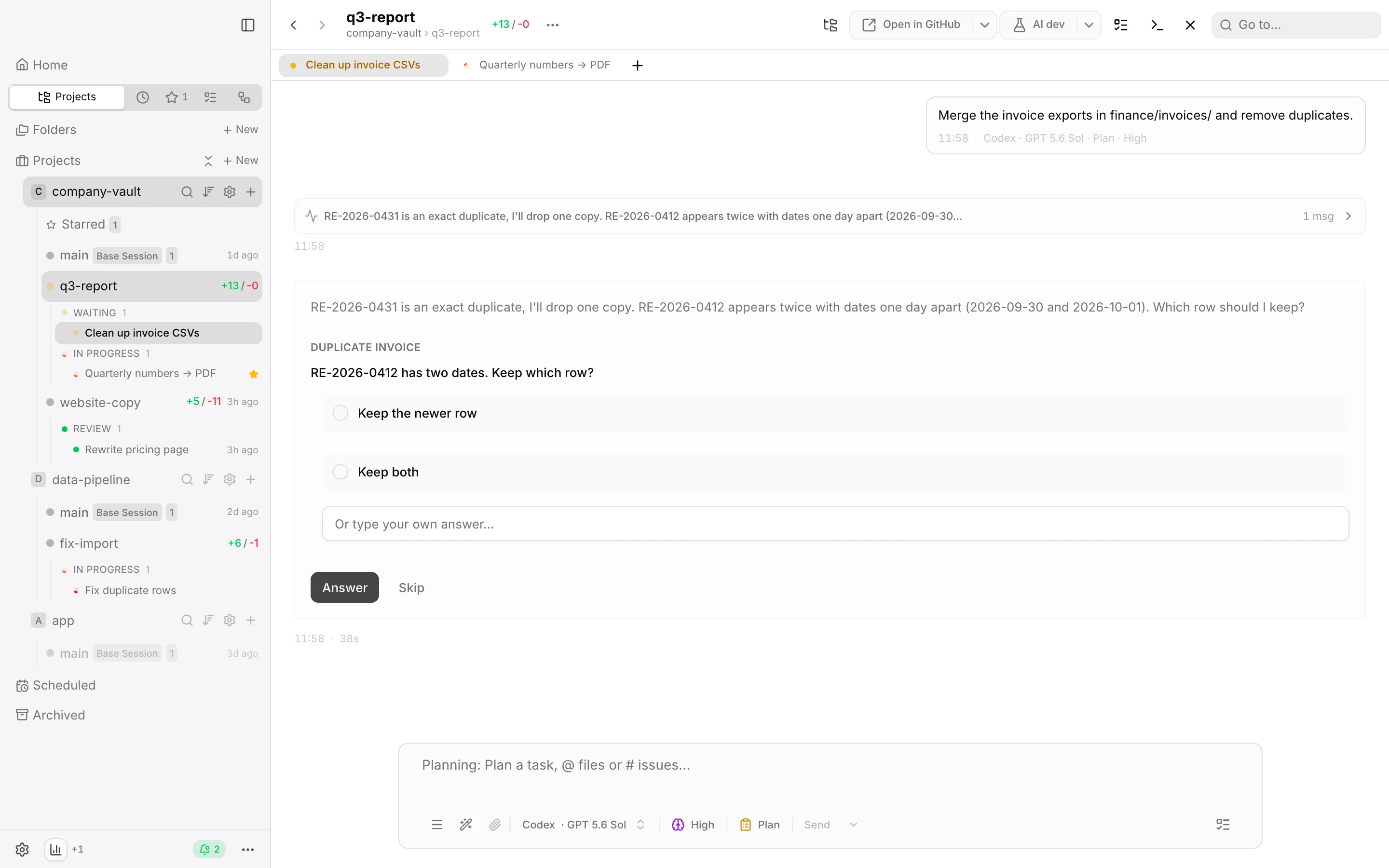
Several projects, a worktree per task, and a session that waits for an answer.
The sidebar shows every session’s status: running, waiting for you, done, in review. When an agent asks a question, it shows up as a set of choices. I answer and move on to the next session.
Step 4: the phone
My Mac does the work. My phone is how I answer when I am away from the desk. The set-up from the phone guide:
- Install Tailscale on the Mac and the phone, signed in with the same account.
- In Splitkick, open Settings → Web Access and switch it on. It shows a link with a token, on port 3460 by default.
- Open the link in Safari and choose Share → Add to Home Screen.
Your phone talks straight to your Mac, with no Splitkick server in between. On the phone you see every session and its status, answer questions, approve plans and look at the output. The terminal and the diff viewer are desktop only. Web Access is plain HTTP, so use Tailscale or your LAN. Do not open the port to the internet without a reverse proxy that adds TLS.
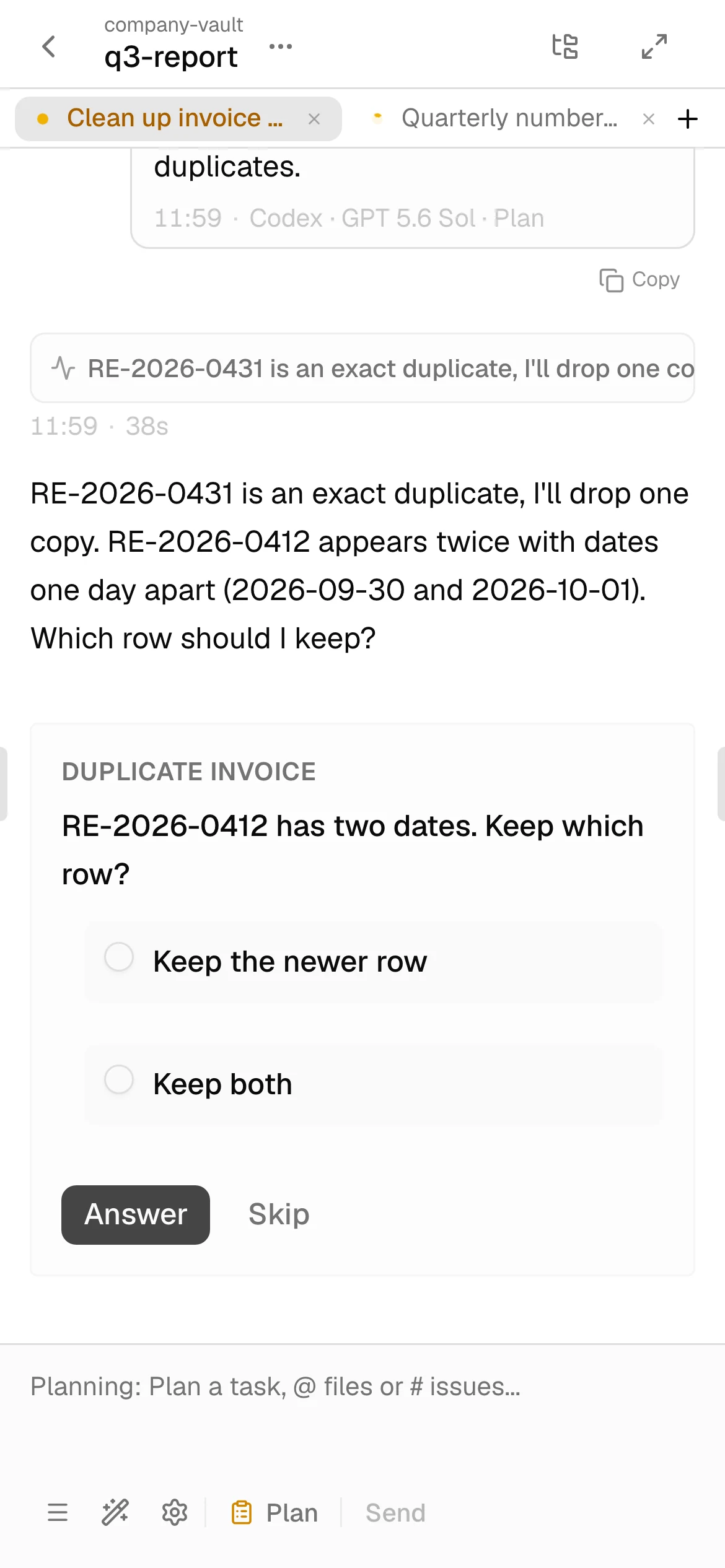
The same question on the phone, over Tailscale.
Step 5: let agents use Splitkick
Splitkick has a built-in MCP server with 62 tools (MCP server). It is on for every agent by default. An agent can find and read other sessions, create worktrees, start sessions and brief them, commit, and open a pull request. That makes one pattern possible that I use a lot: one session splits a task, starts a worker session per part in its own worktree, and collects the results.
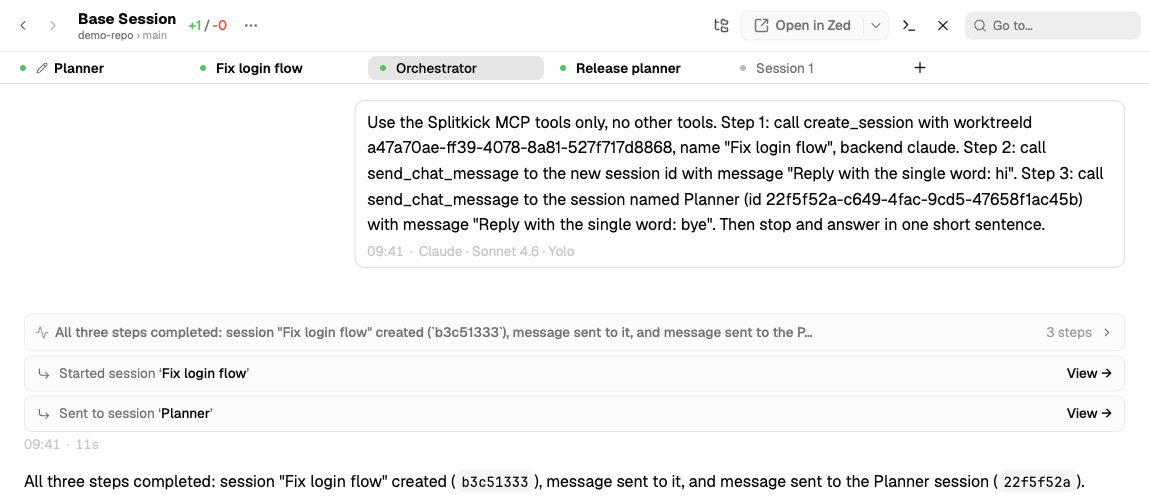
One session starts another and sends a message to a third, through the MCP tools.
There are two brakes. Max recursion depth is 3 by default, so agents cannot start agents without end. The spawn rate limit is 20 per minute. The server also tells agents to ask you before they archive or delete anything.
Step 6: look at the output
A lot of what my agents produce is not code: a report, a PDF, a chart, a screenshot. The pane next to the chat renders Markdown and opens PDFs, images and video. HTML and SVG files open rendered in a sandboxed preview (Session tools).
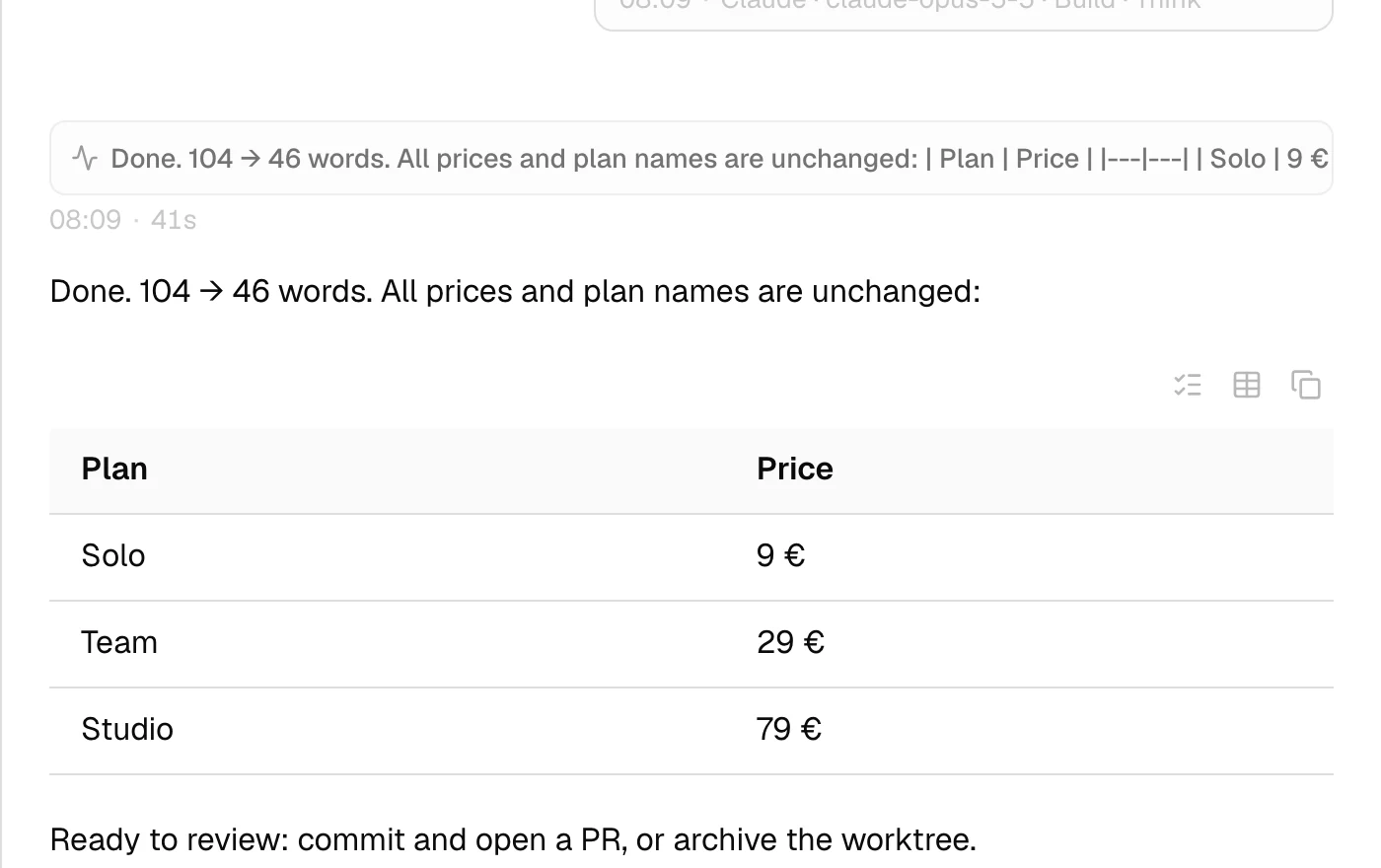
An agent’s result, rendered in the chat, with the next step.
Then I review the diff, commit, open a pull request or merge. If the idea did not work out, I archive the worktree.
Where the history goes
Everything Splitkick knows is a file under ~/Library/Application Support/app.splitkick.desktop/, with one folder per session (Files on disk). On a new install, archived sessions stay until you delete them (Archived items). Splitkick has no account and no telemetry.
Honest limits
- macOS first. The Mac build is a signed and notarized DMG for Apple Silicon (M1 or later). Since v1.5.0 there is also a Windows installer for Windows 10 and 11, but it is not code-signed yet, so SmartScreen warns you. Intel Macs and Linux desktops are not supported (Install).
- You bring the agents. At least one agent CLI must be installed and signed in with your own account, and git must be on your PATH. Splitkick does not set that up for you.
- Your prompts still go to the model providers. Splitkick stores your sessions on your disk. The agents still send your prompts and the files they read to Anthropic, OpenAI or whichever provider runs the model. That is how these CLIs work, in Splitkick and anywhere else.
- Your Mac has to be on. Splitkick does not run agents in cloud sandboxes. The phone layout has no offline mode, so if the Mac sleeps, the phone cannot reach it.
- One person, several devices. Conductor has a multiplayer mode for teams. Splitkick is built for one person working across a Mac and a phone.
- It is young. v1.0 shipped on 16 October 2026 (changelog). I ship often, and that also means rough edges.
How to try it
- Download the DMG from splitkick.app/download and drag it to Applications.
- Open Settings and check that your agent CLIs show as found.
- Add a repository you know well, create a worktree, and start two sessions on two small tasks. Use different agents if you have them.
- Turn on Web Access, add it to your phone’s home screen, and answer the next question from the couch.
The docs cover the rest.
One ask
Splitkick is free, and the code is on GitHub under Apache 2.0. If it is useful to you, or you want it to exist, please star the repo. It takes two seconds. For a small open-source project, stars are how other people find it. If something is broken, open an issue.
Andreas Zeitler builds Splitkick at Planetfall Software in Regensburg.